

A 68-year-old grandmother who has never used an ATM card scans a QR code and pays the vegetable seller ₹40 in three seconds. The same grandmother opens her bank’s app and spends ten minutes stuck between “OTP”, “MPIN” and a button that says “Proceed”. Both are technology. So why does one feel like easy technology and the other feel like an exam?
This guide from The Vishal Media answers that question, then turns it into something useful: how to spot easy tech, how to set up a parent’s phone so it feels simple, and how to keep new users safe while they learn. One quick note before we start: if you’re looking for a company called Easy Technologies, check its official website or the Ministry of Corporate Affairs company records. This article is about easy technology as an idea you can use at home.
What Is Easy Technology? A Simple Definition
Easy technology is technology that lets you finish your task without having to think about the technology itself. You think “I want to pay ₹40”, not “I need to authenticate a transaction through a payment interface”.
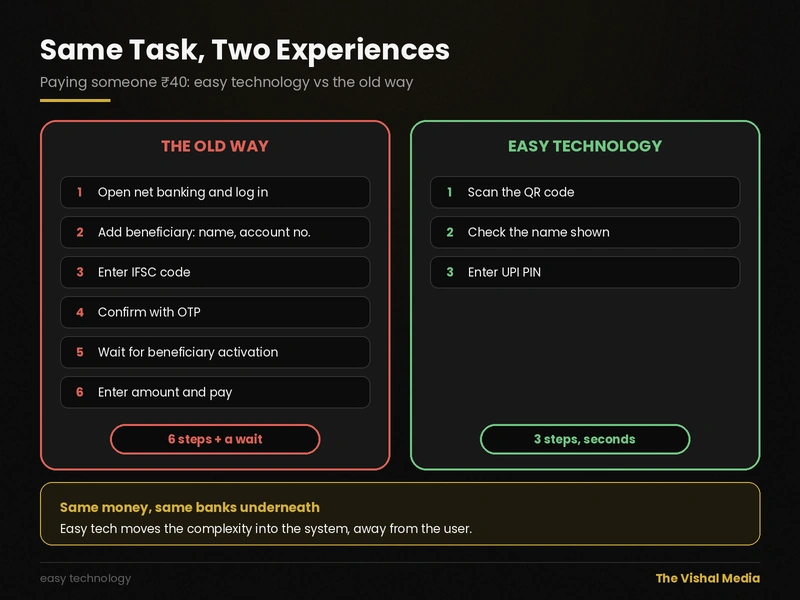
Easy doesn’t mean basic. UPI runs on a huge network of banks and servers, yet the person paying sees a camera, a name and a PIN screen. The complexity hasn’t disappeared. It has been moved away from the user and into the system.
It also helps to separate easy tech from tech that only looks easy. Some apps have clean screens and soft colours but hide important options three menus deep or use words nobody understands. Real ease, the kind people mean by user-friendly technology, shows up when a first-time smartphone user can complete a task without calling someone for help.
The 5 Signs of Truly Easy Technology
Use these five signs to judge any app, device or service, and to spot genuinely easy to use apps. The more of them it meets, the easier it will feel, especially for someone new.
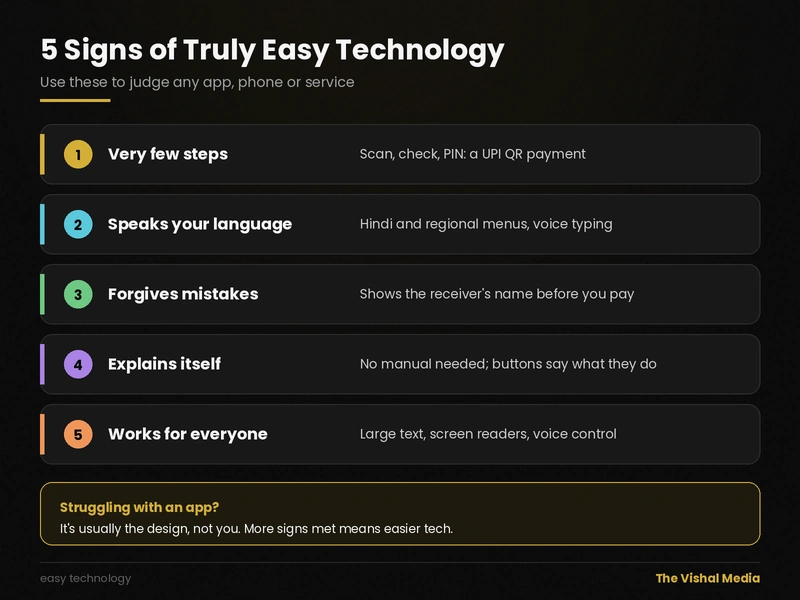
1. It takes very few steps. Paying by scanning a QR code takes three actions: scan, check, enter PIN. Compare that with the older process of adding a beneficiary with an account number and IFSC code, then waiting before you could send money.
2. It speaks your language. Phones and many popular apps now offer menus in Hindi and other Indian languages, and voice typing lets you speak instead of type. When the words on screen match the words in your head, half the difficulty vanishes.
3. It forgives mistakes. Good technology stops errors before they happen. UPI apps show the receiver’s name before you confirm a payment, so you can catch a wrong number in time. Undo buttons and “Are you sure?” prompts do the same job elsewhere.
4. It explains itself. You shouldn’t need a manual. A camera icon should open the camera, and a big green button should do the obvious next thing. If you have to guess what a button does, the design has failed, not you.
5. It works for everyone. Large text, screen readers, voice control and simple layouts help people with weak eyesight, shaky hands or limited reading skills. These accessibility features often make tech easier for everyone else too.
Easy Technology Examples You Already Use in India
India has some of the best real-world easy technology examples, partly because many services had to work for people using a smartphone for the first time, often before they had much digital literacy.
-
UPI payments: scan, see the name, enter a PIN. Street vendors with no billing machine accept digital payments every day because of this simplicity.
-
DigiLocker: your Aadhaar, driving licence, marksheets and other official documents in one government app. Union Minister Ashwini Vaishnaw told the Rajya Sabha that it has more than 72 crore registered users. You can sign up on the official DigiLocker website or app.
-
WhatsApp voice notes and video calls: for someone who can’t type comfortably, holding a button and speaking is the easiest communication tool ever made.
-
Google Lens: point the camera at a signboard, a medicine strip or a form in another language, and it reads or translates the text.
-
Voice typing in Indian languages: speak in Hindi, Tamil or Bengali and watch the words appear. Government projects like Bhashini are working to bring more Indian languages to digital services.
-
FASTag: the most invisible kind of easy tech. You don’t do anything at all; the toll is paid as you drive through. Our guide to the toll gate receipt backside explains what replaced the paper slip.
-
Phone features that work offline: face unlock and offline translation run on your phone’s own chip. That’s a kind of AI that works without internet, and it’s a big reason these features feel instant.
Many of these tools quietly use artificial intelligence behind the scenes, from reading text in photos to turning speech into words.
Why Some Technology Still Feels Hard
If a family member struggles with an app, it’s rarely because they’re “not good with technology”. More often, the design is asking too much.
-
Too many choices on one screen. A bank app’s home page might show 30 options when the user wants only one: check balance.
-
Technical words. OTP, MPIN, KYC, sync, cache. Each unfamiliar word is a small wall.
-
Tiny text and buttons. Small fonts and crowded icons are hard for older eyes and thicker fingers.
-
Fear of costly mistakes. When money is involved, people freeze. “What if I press the wrong thing and the money goes?”
-
Screens that change after updates. Someone who memorised where a button was suddenly can’t find it.
The fix is rarely more teaching. It’s usually better settings, fewer apps and a calmer first experience, which is exactly what the next section covers.
How to Make Your Parents’ Phone Easy: A 15-Minute Setup
If you’re looking for simple technology for seniors, start with the phone they already own. You can make almost any Android phone or iPhone noticeably easier in about 15 minutes. Menu names differ slightly by brand and software version, so use the phone’s Settings search bar if you can’t find an option.
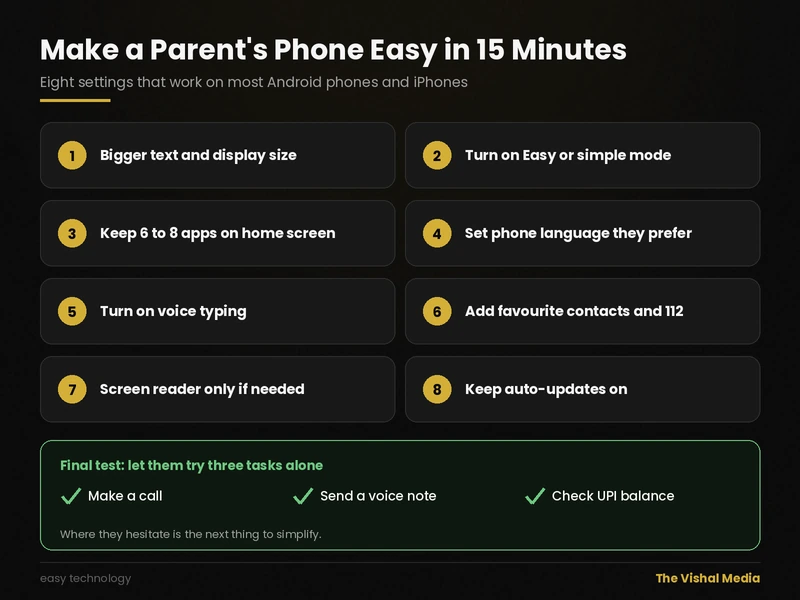
1. Increase text and display size. On Android, look for “Font size” and “Display size” under Display or Accessibility. On iPhone, go to Settings, then Display & Brightness, then Text Size. Bigger text means fewer misreads and less squinting.
2. Turn on simple mode if the phone has one. Some phones, including many Samsung models, offer an “Easy mode” that enlarges icons and simplifies the home screen. It’s one of the quickest ways to make a phone feel friendly.
3. Clean up the home screen. Keep only six to eight essential apps on the first screen: Phone, WhatsApp, Camera, Photos, the UPI app and maybe YouTube. Move everything else to another page or a folder. Fewer choices, fewer mistakes.
4. Switch the phone language. If your parents are more comfortable in Hindi, Marathi or another language, change the system language in Settings. Many apps will follow automatically.
5. Turn on voice typing and the voice assistant. Show them the microphone icon on the keyboard. Being able to say “Call Pinky” or speak a WhatsApp message removes a lot of frustration.
6. Put favourite contacts and emergency numbers on the home screen. Add shortcuts for the people they call most, and save 112 for emergencies. One tap is easier than searching a long contact list.
7. Show them the screen reader if eyesight is weak. Android’s TalkBack and iPhone’s VoiceOver read the screen aloud. They take a little practice, so turn them on only if they’re truly needed, and stay nearby the first time.
8. Keep automatic updates on, but explain changes. Updates fix security problems, so don’t turn them off. When an app looks different after an update, spend two minutes showing what moved.
Finish by asking them to do three tasks on their own while you watch quietly: make a call, send a voice note and check the balance in their UPI app. Wherever they hesitate is the next thing to simplify.
Easy Technology and Safety: 5 Rules Every New User Should Know
The easier technology gets, the more scammers try to exploit trust. These five digital safety rules cover most of the risks new users face.
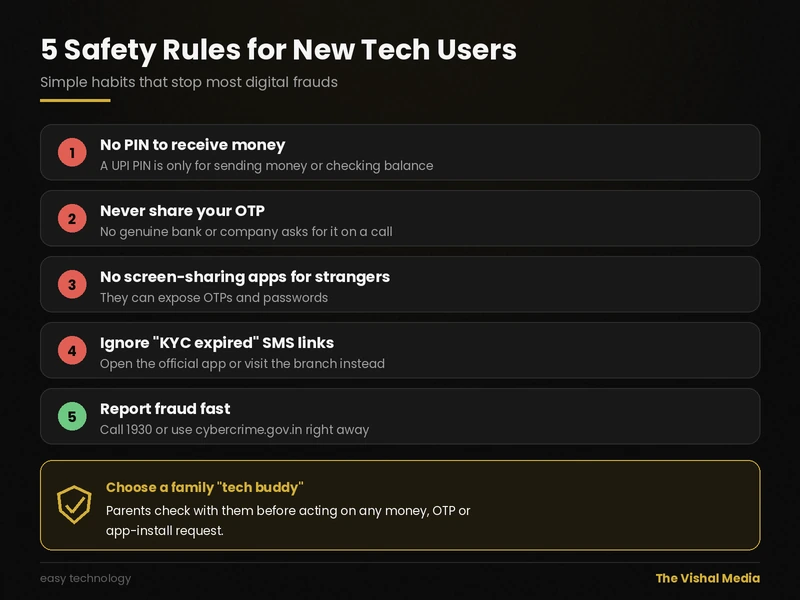
1. You never enter your UPI PIN to receive money. A PIN is only for sending money or checking your balance. If someone says “enter your PIN to receive the refund”, it’s a scam. NPCI has already stopped person-to-person UPI collect requests to reduce this kind of fraud, but scammers still use fake QR codes and payment links.
2. No genuine bank or company asks for your OTP on a call. An OTP is like a one-time key to your account. Anyone who asks for it, whatever they claim, should be treated as a fraudster.
3. Never install screen-sharing apps because a stranger asked. Apps that let someone see your screen can expose your OTPs and passwords. Banks don’t need to see your screen to help you.
4. Don’t click links in “KYC expired” or “account blocked” messages. Banks and telecom companies don’t suspend accounts through random SMS links. Open the official app or visit the branch instead.
5. Report fraud immediately. If money is lost, call the cybercrime helpline 1930 right away or file a complaint on the National Cyber Crime Reporting Portal. Fast reporting improves the chance of stopping the transfer.
One family habit helps more than any app: choose a “tech buddy”. Ask parents to message or call that person before acting on any unexpected request involving money, OTPs or app installs.
A Developer’s View: What Makes an App Easy to Use
Here at The Vishal Media, the developer’s perspective is part of how we judge tools, and one lesson stands out: easy apps are usually the hardest ones to build.
When developers test user experience (UX), the simplest question is the most revealing: can a new user complete the main task without help? If someone has to ask “what do I press now?”, the screen needs work. Good teams watch real people use their app and fix every spot where they pause.
Well-designed apps also prevent mistakes instead of apologising for them. Showing the receiver’s name before a payment is a perfect example. It costs the user one glance and saves them from sending money to the wrong person.
And “easy” takes effort. Every time an app hides complexity from you, someone had to handle that complexity in the code. So if an app still confuses you after a few honest tries, it’s fair to blame the design and look for a simpler alternative.
Easy Tech Checklist: Before You Download an App or Buy a Phone
Run through these questions before choosing an app or phone for yourself or a family member. If most answers are “yes”, you’re looking at genuinely easy technology.
-
Is it available in my preferred language?
-
Could I finish the main task in three or four steps?
-
Can I read the text and tap the buttons comfortably without zooming?
-
Is there an undo or cancel option if I make a mistake?
-
Is it from the official Play Store or App Store, with a trustworthy developer name and reviews?
-
Does it ask only for permissions it clearly needs, not contacts, SMS or location for no reason?
-
Is there in-app help or a support number?
-
Could someone at home explain it to another person in a couple of minutes?
Frequently Asked Questions
What is meant by easy technology?
It means technology designed so people can use it correctly without training or technical knowledge. The best examples feel natural, need few steps and work in the user’s own language.
What are some examples of easy technology?
In India, common examples include UPI QR payments, WhatsApp voice notes and video calls, DigiLocker, Google Lens, voice typing and FASTag. Each one hides complex systems behind a few simple actions.
Which phone settings make a smartphone easier for seniors?
Start with larger text and display size, a simple or easy mode if available, a decluttered home screen, the phone language they prefer, voice typing, and shortcuts for favourite contacts and emergency numbers.
Is easy technology safe to use for online payments?
Yes, as long as users follow basic rules: never share an OTP, never enter a UPI PIN to receive money, avoid screen-sharing apps from strangers and use only official apps. Most frauds rely on tricking people, not on breaking the technology.
How can I teach my parents to use a smartphone?
Set the phone up first so it’s simpler, then teach one task at a time, such as making a call or sending a voice note. Let them do it themselves while you watch, write down the steps if it helps, and repeat over a few days rather than all at once.
What is the difference between easy technology and basic technology?
Basic technology has limited features, like a keypad phone that only calls and texts. Easy technology can be very advanced underneath, like UPI or a smartphone camera, but it’s designed so the user experience stays simple.
Make Tech Easier for Someone Today
You don’t have to be a tech expert to make technology feel easy for the people you care about. Fifteen minutes of setup and a few safety rules can change how a parent or grandparent feels about their phone.
-
Share this guide in your family WhatsApp group, or keep it open the next time you set up a parent’s phone.
-
Save the checklist for your next app download or phone purchase.
-
Curious about the tech behind voice typing and Google Lens? Read our guide to artificial intelligence.
-
Stuck on a setting or app? Send us your question and The Vishal Media may explain it in a future guide.
-
Explore more in our technology guides.
Disclaimer
This guide is for general information only. Phone menus and feature names vary by brand, model and software version. For anything involving money or personal data, use only official apps and official helplines.