

You are reading a recipe and a family member keeps messaging you. Or you are copying a number from a message into a form. Switching back and forth between apps wastes time, and the Galaxy A50 can show two apps at once. The trouble is that the option is easy to miss, and for some apps it never appears.
This guide from The Vishal Media covers split screen in Samsung A50 from start to finish: the steps, resizing and leaving split screen, pop-up view, and what to do when “Open in split screen view” is missing. The steps come from Samsung’s own Galaxy A50 manual and support pages, listed at the end. Menu names can differ slightly by software version, so use the Settings search bar if something looks different.
Split Screen in Samsung A50: The Steps
Samsung calls the feature Multi Window. The Galaxy A50 manual describes it as a way to use several apps at once, with apps that support it sharing a split screen. Here is the method.
- Open both apps first. Samsung’s support page suggests having the apps you want already open.
- Open Recent apps. Tap the Recent apps button on the navigation bar. If you use swipe gestures, swipe up from the bottom of the screen and hold for about a second. Your open apps appear as cards.
- Tap the icon of the first app, at the top of its card, and choose Open in split screen view.
- Pick the second app in the other half of the screen. AT&T’s A50 guide notes that you can choose any app from the full app list, not only the ones in Recent apps. Both apps now run side by side.
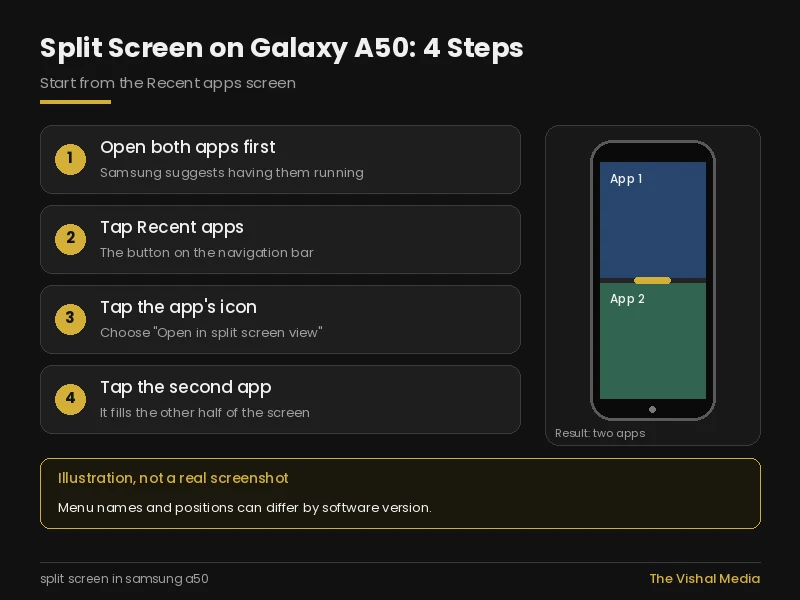
If your menu looks different. Samsung’s UAE support page describes a newer version of the same idea: tap Recent apps, press and hold an app’s card, and choose Split Screen. If you do not see “Open in split screen view” after tapping the icon, try the press-and-hold method before assuming the feature is missing.
Two details trip people up. The icon you tap is the small app icon above the card, not the preview picture itself. And only apps that support Multi Window are offered for the second half of the screen.
Buttons or Gestures: How to Open Recent Apps
Samsung lets you choose how the navigation bar works. The setting is at Settings > Display > Navigation bar, where you pick Buttons or Swipe gestures.
| Navigation style | How to open Recent apps |
|---|---|
| Buttons (the default) | Tap the Recent apps button on the navigation bar. |
| Swipe gestures | Swipe up from the bottom of the screen and hold for about one second. |
Samsung’s page says menu names can change, so use the Settings search bar if “Navigation bar” is not where you expect it.
Split Screen Cheat Sheet
| What you want | What to do |
|---|---|
| Open split screen | Recent apps > tap an app’s icon > Open in split screen view > pick a second app |
| Resize the windows | Drag the line between the apps up or down |
| Leave split screen | Tap the Home button |
| Use a floating window | Recent apps > tap an app’s icon > Open in pop-up view (if offered) |
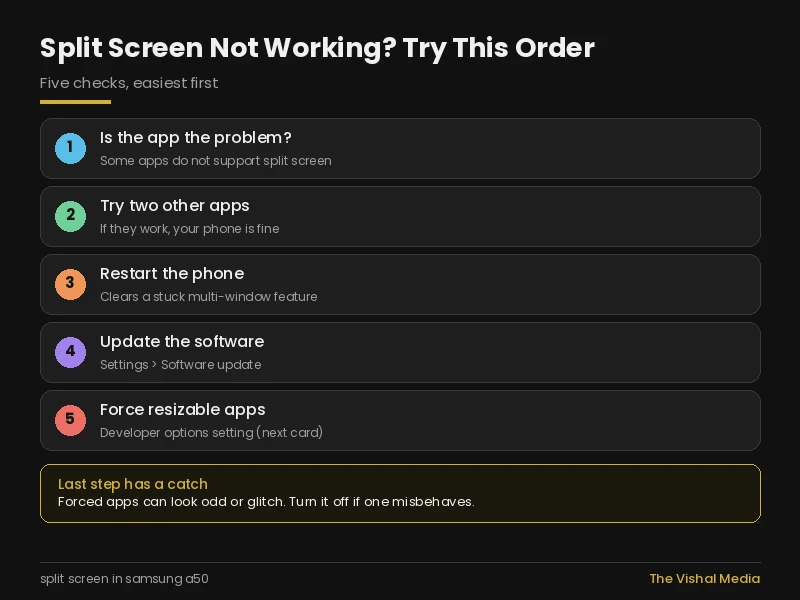
| Option missing | Test two other apps, restart, update, then try the Developer options setting |
What Your Galaxy A50 Needs for Split Screen
Split screen is not a special hardware feature. It depends on the software and the apps.
| Item | What to know |
|---|---|
| Phone support | The Galaxy A50 user manual includes a Multi Window section, so the feature is part of the phone. |
| Android version | Android has supported split screen on phones since version 7.0, according to Android’s developer documentation. |
| Software update | The A50 has received Android 11 with One UI 3.1 in many regions, according to XDA. Check Settings > Software update to see yours. |
| App support | Each app decides whether it allows split screen. This is the most common reason the option is missing. |
One point is worth knowing if you use two apps at once. Android’s documentation says that on Android 9 and lower, only one app in multi-window mode is active at a time, and from Android 10 onward, all visible apps can stay active. Samsung can change how this behaves on its phones, so treat it as a general guide. If a video or call in one window pauses while you use the other, the software version may be why.
How to Resize, Swap and Leave Split Screen
Resize the windows. Drag the line between the two apps up or down, then let go where you want the split. The A50 manual says to drag the middle of the window border.
Leave split screen. Samsung’s support page says to tap the Home button.
Swap the two apps. Samsung’s A50 pages do not describe a swap control. The simple route, and my own suggestion rather than a Samsung instruction, is to leave split screen and start again with the apps in the other order.
Pop-Up View: A Different Way to Use Two Apps
Split screen divides the display. Pop-up view puts a small, movable window on top of a full-screen app. It suits quick checks, such as looking at a calendar while you read.
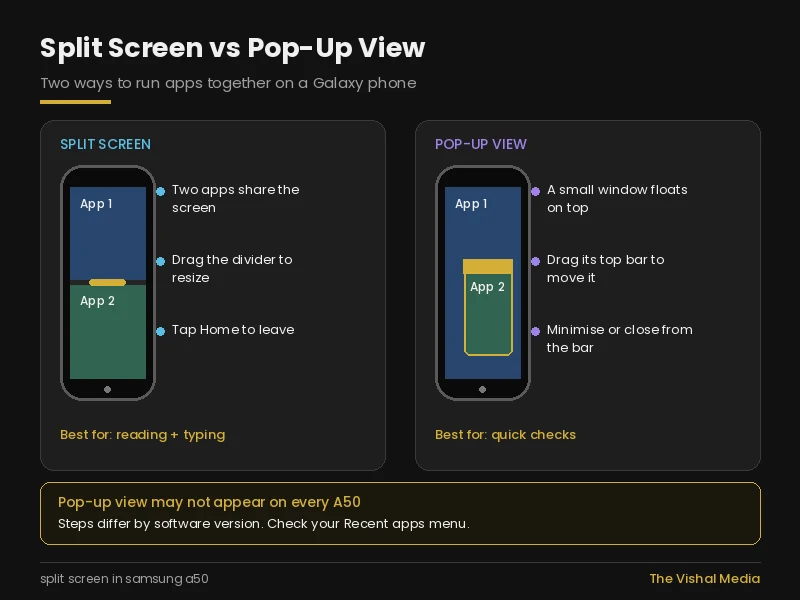
According to Samsung’s UK support page, the steps are:
- Tap Recent apps, then tap the app’s icon.
- Choose Open in pop-up view.
- Drag the bar at the top of the window to move it.
- Tap the home button, or tap the top bar and choose the minimise icon, to shrink it to an icon. Tap the top bar and then X to close it.
Samsung adds that its steps “may be different depending on your model and operating system”, and the A50 manual page I checked covers only split screen. If you do not see Open in pop-up view on your phone, your software version may not offer it.
Why “Open in Split Screen View” Is Missing
If you tap the icon and the split screen option is not there, one of these is usually the cause.
| Cause | What is happening | What to try |
|---|---|---|
| The app does not support it | Samsung says some apps are not compatible with split screen or pop-up view. | Test with two other apps. If those work, the phone is fine. |
| The app is built to block it | Android’s documentation says an app that is marked non-resizable and targets Android 12 or newer cannot run in multi-window on a small screen. Older apps marked this way open full screen instead. | Update the app, or use the force option below. |
| A glitch after an update | Some users on Samsung’s community forum report the option disappearing after an update on Android 11 with One UI 3.1. This is a user report, not an official finding. | Restart the phone, then try the force option below. |
| Low storage or a stuck feature | Samsung’s support page suggests freeing storage and restarting if a feature stops responding. | Free some space and restart. |
How to Force Any App Into Split Screen
If a single app refuses split screen, Android has a developer setting that asks every app to be resizable. This is the method Samsung Members posters and other tech sites describe, not one in Samsung’s official manual, so use it with care.
- Open Settings > About phone > Software information.
- Tap Build number repeatedly until the phone says Developer mode is on. Sources quote seven or ten taps, so keep tapping until it confirms.
- Go back to Settings, scroll to the bottom and open Developer options.
- Turn on Force activities to be resizable. Some phones label it “Force application to be resizable”.
- Try split screen again.
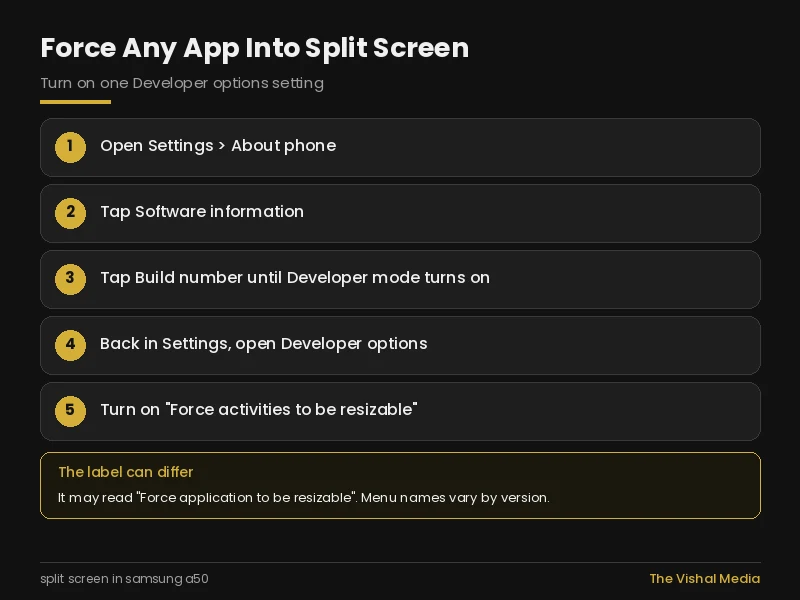
Know the trade-off. Apps that were not designed for resizing may look odd or misbehave. If one does, switch the setting off again. Some phones also have Settings > Advanced features > Labs > Multi window for all apps, which a Samsung Members post lists as another route. I could not confirm it exists on the A50, so look for it rather than expecting it.
Making Split Screen Useful
Split screen is most helpful when the two apps work together:
- Read a message or recipe on one side and take notes on the other.
- Keep a map on one half while you reply to a message on the other.
- Watch a video on one half while you search for related information.
- Some apps let you drag text from one window to the other. This depends on each app, so try it before you rely on it.
For longer tasks, a small window like pop-up view is better. For anything involving money or OTPs, keep to one app at a time and avoid screen-sharing apps, as covered in our guide to easy technology.
Frequently Asked Questions
Does the Samsung Galaxy A50 have split screen?
Yes. The Galaxy A50 user manual includes a Multi Window section that explains how to open apps in a split screen view.
How do I turn off split screen on a Samsung A50?
Samsung’s support page says to tap the Home button.
How do I change the size of the two windows?
Drag the line between the two apps up or down and release it where you want the split.
Why can’t I use split screen with some apps?
Some apps do not support it, and Android lets developers block it. Try two different apps to confirm the phone is working, then consider the Developer options setting.
Is it safe to force apps into split screen?
It is a standard Android developer setting, but apps not built for it may display incorrectly. If an app misbehaves, turn the setting off.
What is the difference between split screen and pop-up view?
Split screen divides the display between two apps. Pop-up view shows a small movable window on top of a full-screen app.
Next Steps
Open Recent apps now and try the four steps with two apps you use often. If it works, you can resize the windows to suit what you are doing.
- Share this guide with someone who has a Galaxy A50.
- Set up a family member’s phone with the settings in our easy technology guide.
- Stuck on a setting? Send us your question and The Vishal Media may explain it in a future guide.
- Explore more in our technology guides.
Editorial Source Notes
- AT&T: Samsung Galaxy A50, using Multi Window: the A50 steps, choosing the second app from the full list, and leaving with the Home icon.
- Samsung Ireland: Optimised Navigation bar functions: Buttons versus Swipe gestures and the swipe-and-hold Recent apps gesture.
- Samsung Developers: drag and drop across apps in multi-window mode: drag and drop depends on each app’s support.
- Samsung Galaxy A50 user manual, Multi Window (page 41): the Recent apps and “Open in split screen view” steps, and resizing.
- Samsung UK: How to use split screen and multi windows: split screen and pop-up view steps, exiting, and the note that steps vary by model.
- Samsung UAE: How to use split screen and multi windows: app compatibility, storage and restart notes.
- Android Developers: Support multi-window mode: Android version history and behaviour of non-resizable apps.
- XDA Developers: Galaxy A50 and A50s get Android 11 with One UI 3.1: A50 software updates.
- Samsung Members: use any app in split screen or pop-up view and Samsung Members: split screen and pop-up view not working: user reports, not official Samsung guidance.
- Techloy: enable multi-window mode for all apps on Android: Developer options steps and warnings.
Disclaimer
This guide is for general information. Menu names and options vary by software version, and Developer options can affect how apps behave. The steps were compiled from Samsung’s published instructions and the sources above, not from testing on a physical Galaxy A50. If an app misbehaves after you change a setting, switch it off.